
🎵 Music Library
Browse, search, and manage your entire music collection from the Library view.
Data Dimensions
Explore your music collection through four distinct perspectives:
🎵 Songs
The default view displaying all individual tracks in your library. 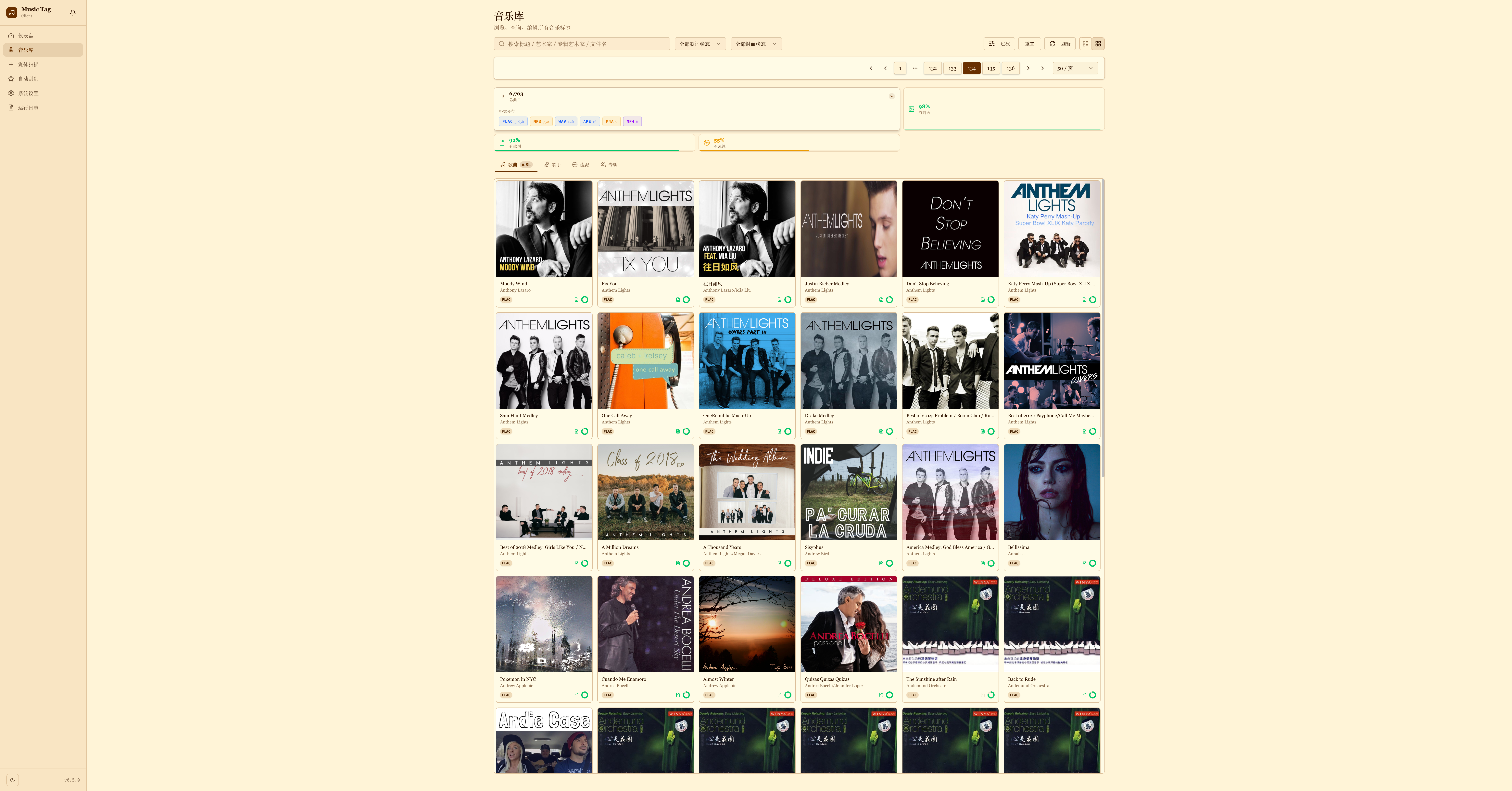
🎤 Artists
Group your library by artist. View artist profiles and all associated tracks. 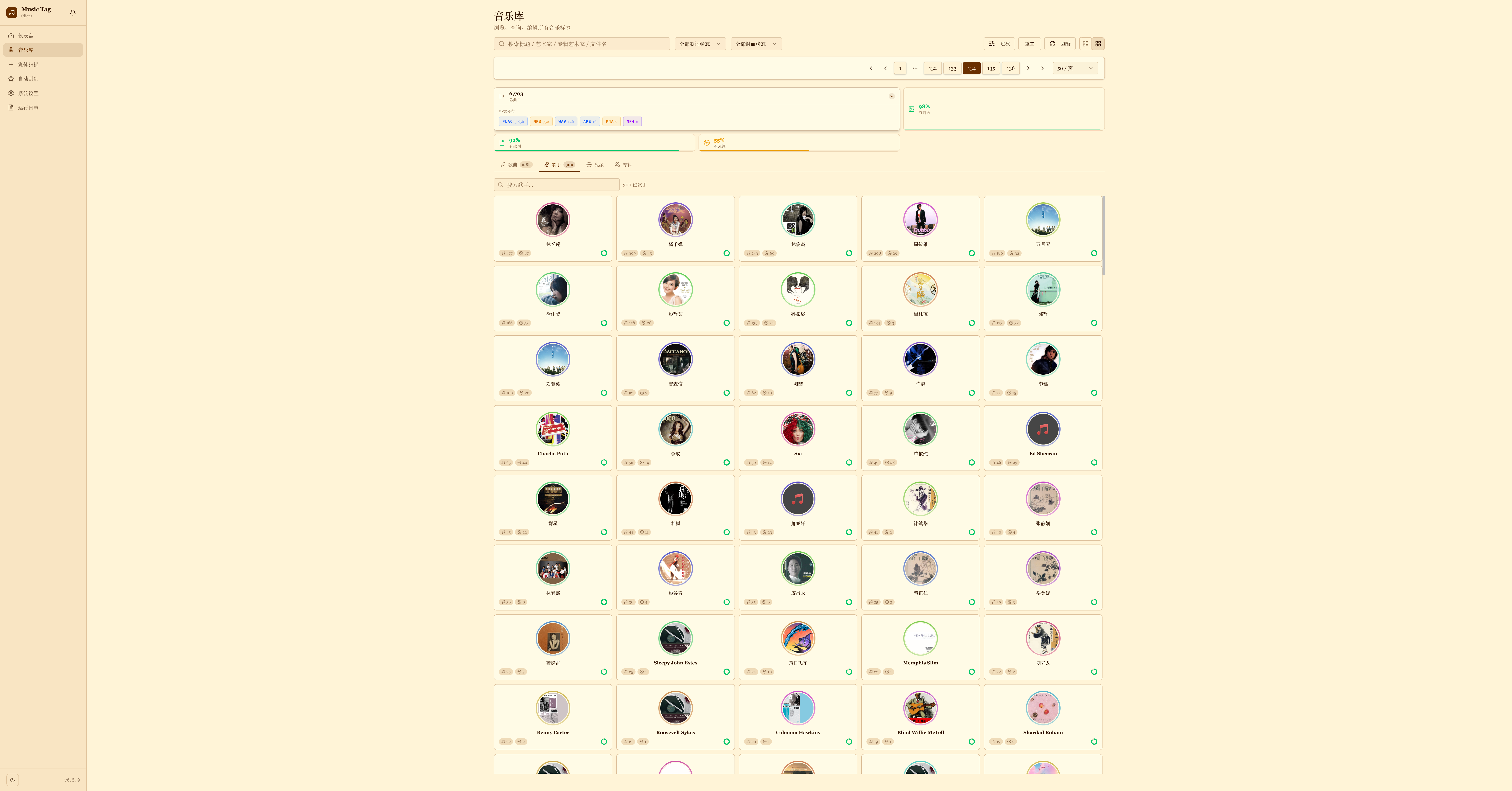
💿 Albums
Browse your collection by album, showcasing album art and metadata. 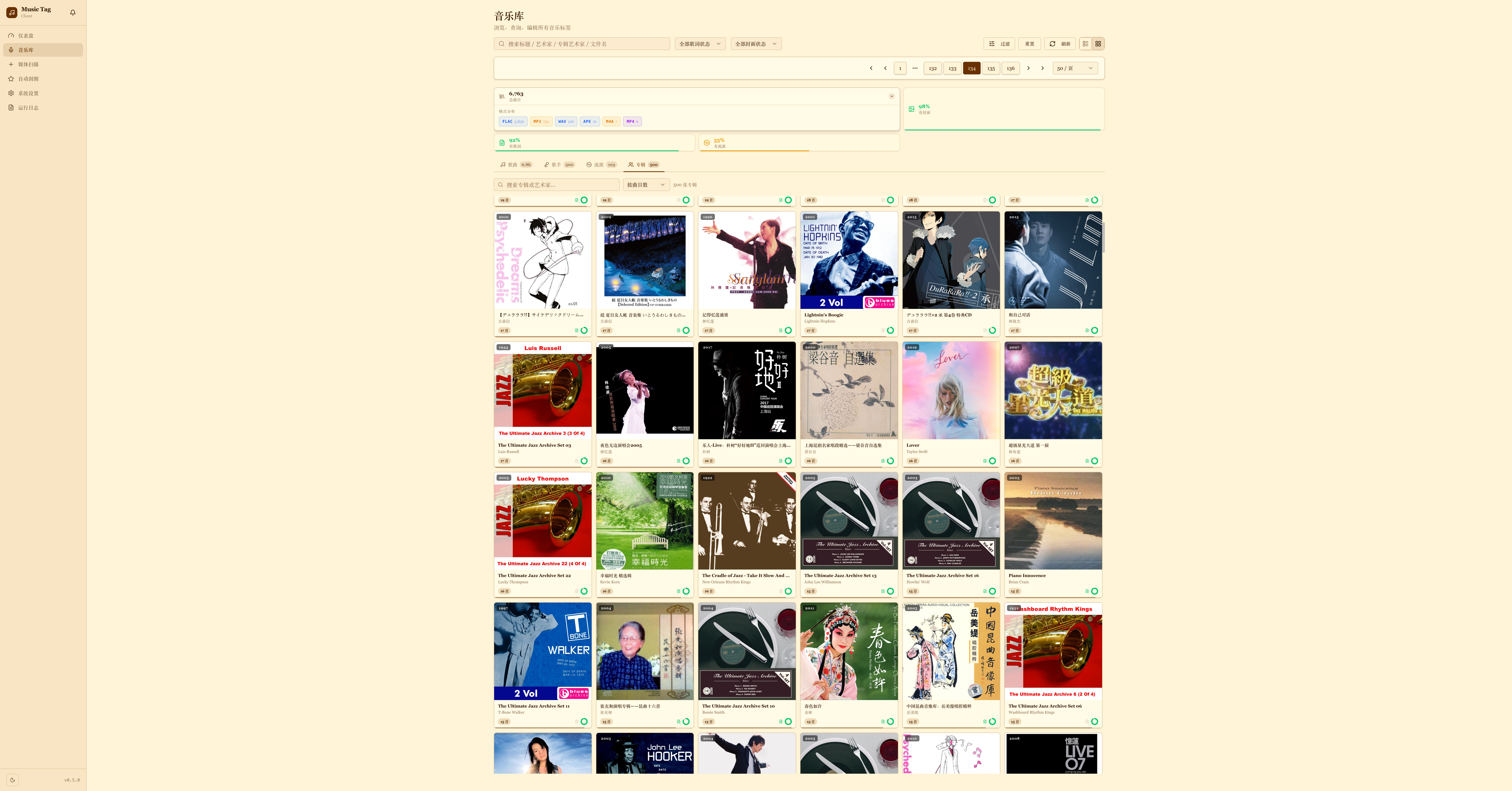
🎸 Genres
Navigate your library categorised by musical genres. 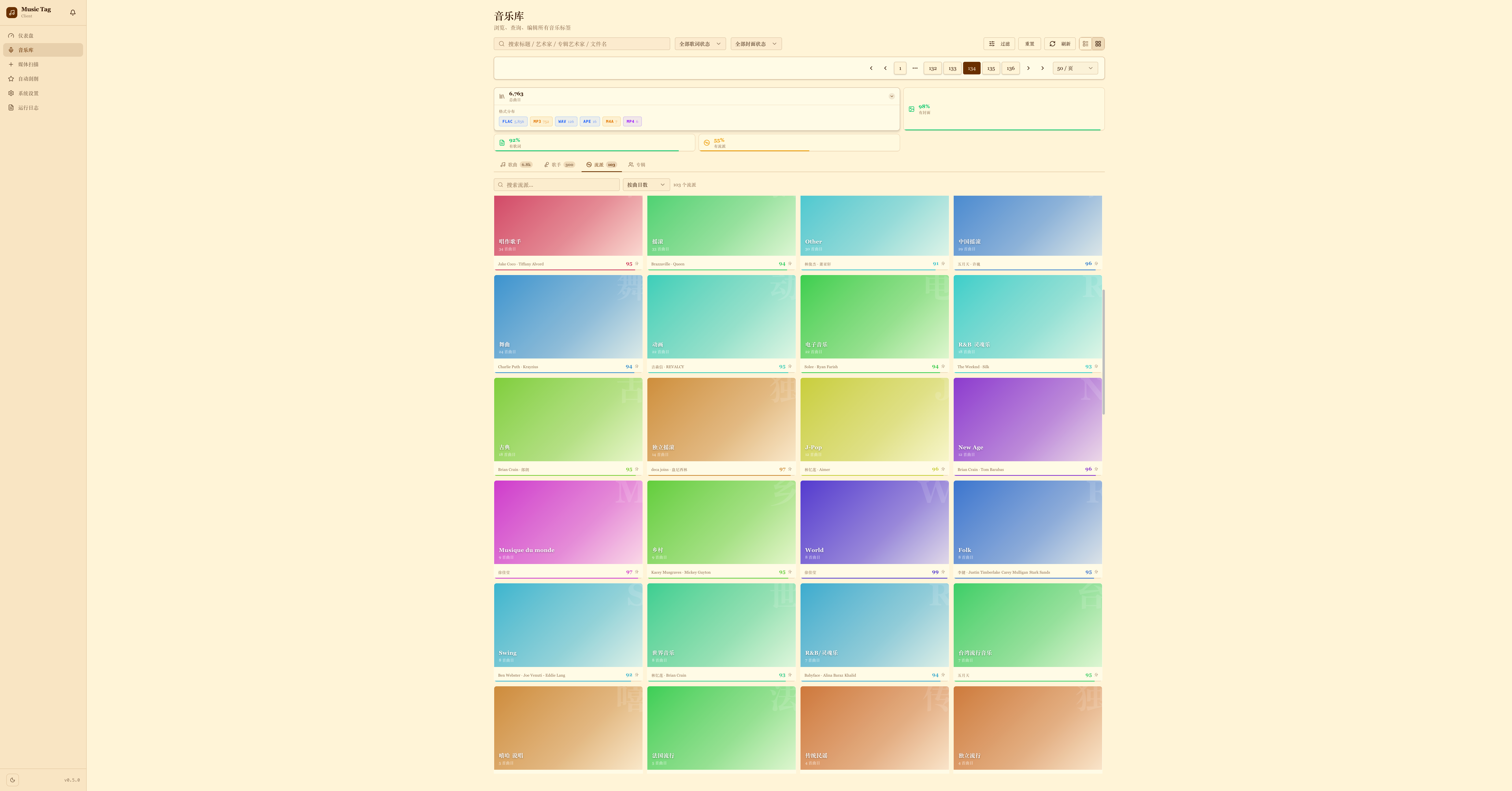
View Modes
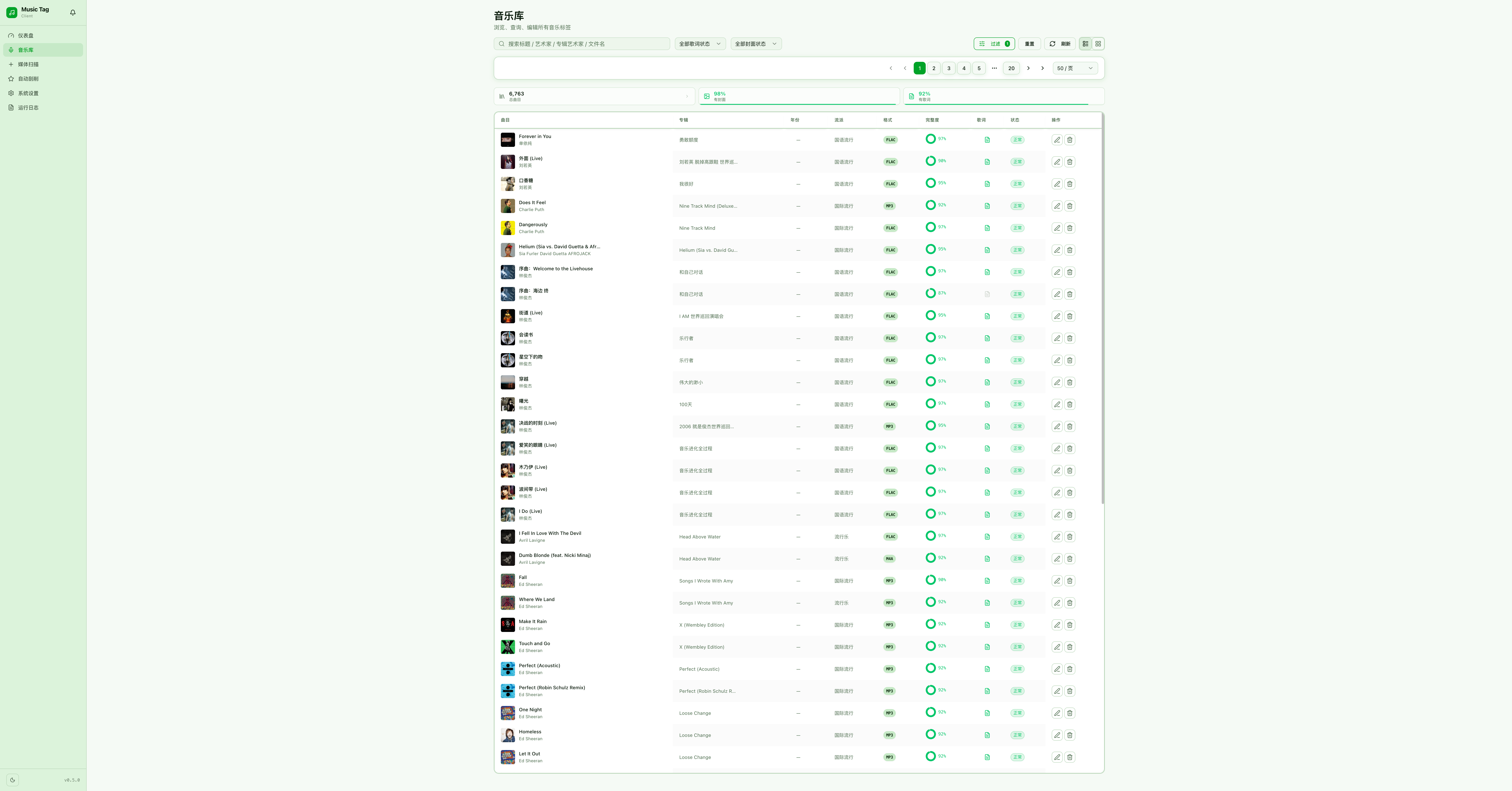
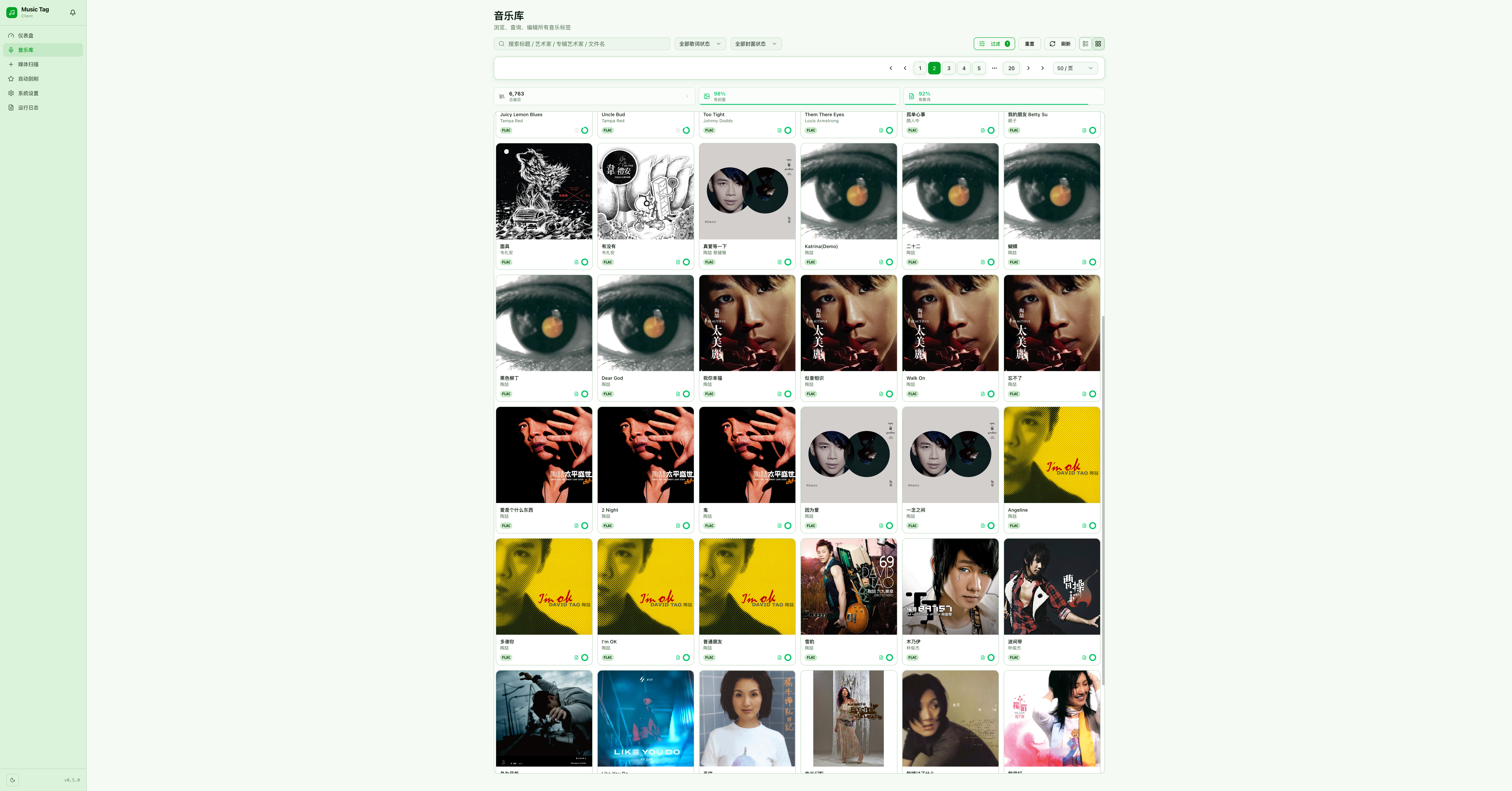
The library supports two display modes, switchable from the top toolbar.
📋 List View
The default table view — shows all tracks in a dense, sortable grid with columns for title, artist, album, genre, year, and more. Click any column header to sort.
🖼️ Cover View
A visually rich grid layout that displays each track or album with its cover art front and centre. Ideal for browsing a well-tagged library at a glance.
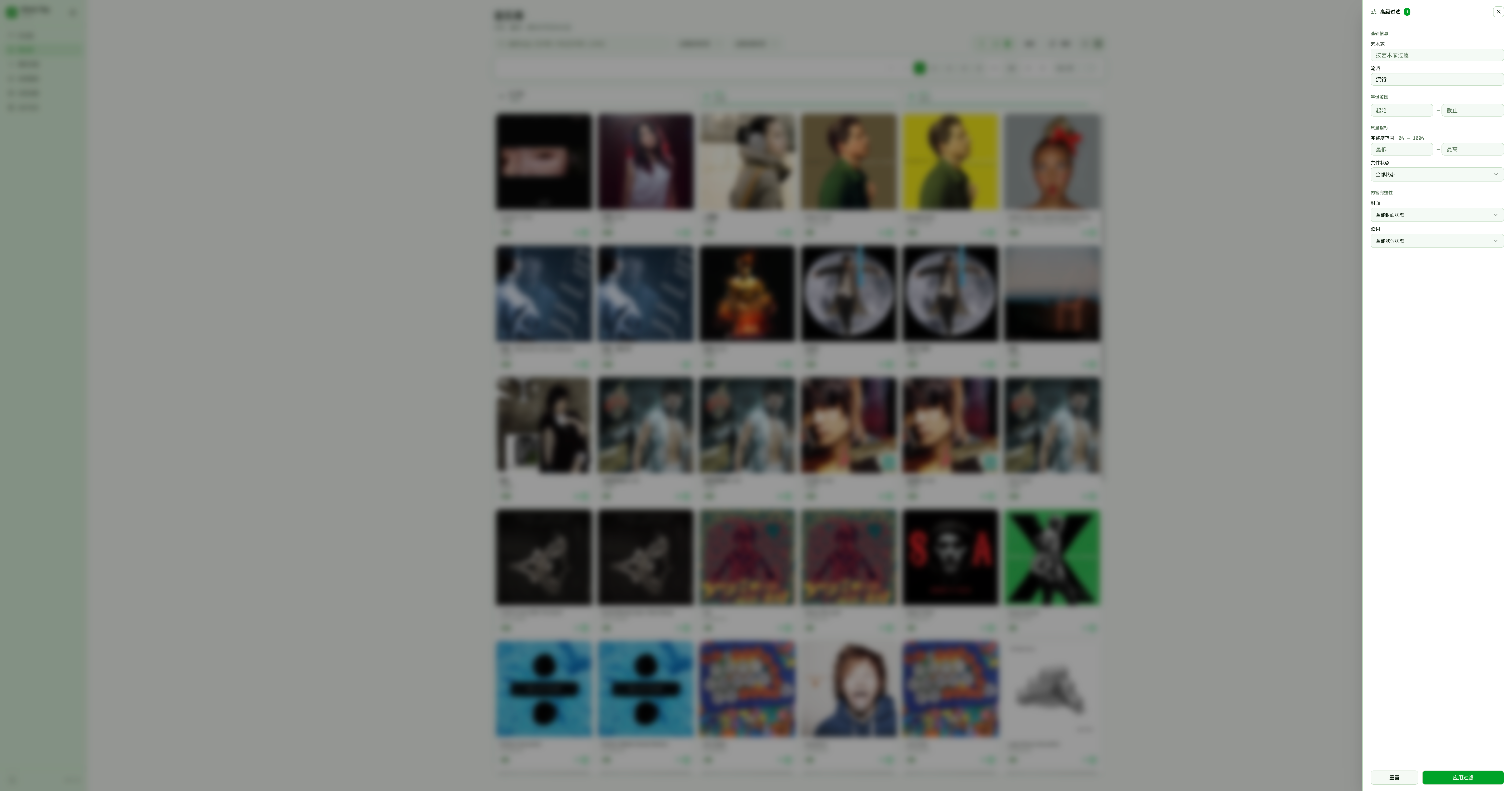
Advanced Filtering
Narrow down your library using the filter panel on the left:
- Filter by Artist, Album, Genre, Year, or Language.
- Combine multiple filters simultaneously.
- Filters persist across view mode switches.
- Supports free-text search across all indexed fields.
Batch Actions
Select multiple tracks and apply actions in bulk:
- Scrape — trigger a metadata lookup for all selected tracks.
- Edit Tags — open a batch editor to apply the same value across all selected tracks.
- Export — export selected track metadata as CSV.
- Delete — remove selected records from the database.
📸 [Batch action bar screenshot — coming soon]