
🗂️ File Health
Keep your music library clean and consistent with Music Tagger's automated file health tools.
Missing File Scanner
Identifies tracks in the database whose audio files can no longer be found on disk — typically after moving, renaming, or deleting files outside of Music Tagger.
How to Run
- Navigate to Library → File Health.
- Click Scan for Missing Files.
- Review the results list. Each row shows the database record and the last-known path.
Actions Available
| Action | Description |
|---|---|
| Relocate | Manually point the record to the new file path |
| Auto-Match | Let the system search by filename or fingerprint |
| Remove Record | Delete the orphaned database entry |
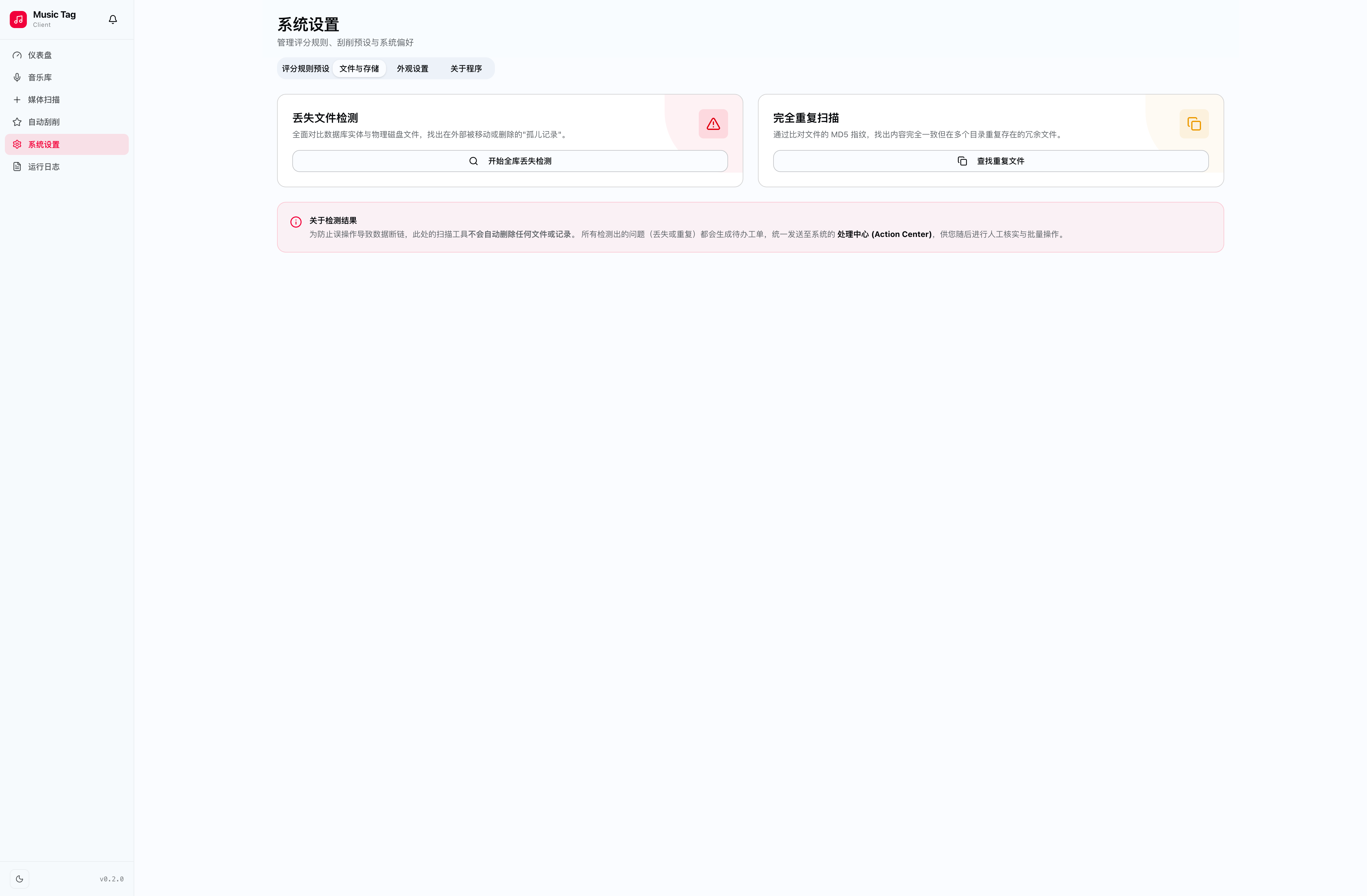
Duplicate Detector
Finds exact and near-duplicate files using two detection methods:
| Method | How it works |
|---|---|
| Metadata Similarity | Matches tracks with identical title + artist combinations |
| Audio Fingerprint | Uses acoustic fingerprinting to detect same audio, regardless of format or bitrate |
Duplicate Actions
- Keep Highest Quality — Auto-select the highest bitrate/format file and mark others for deletion.
- Manual Review — Compare side-by-side and choose which copy to keep.
- Merge Tags — Combine the best metadata from both copies into the keeper.
📸 [Duplicate detector screenshot — coming soon]
Path Repair
After reorganising your music directory structure, use Path Repair to update all database records at once.
- Click Library → Path Repair.
- Enter the old path prefix and the new path prefix.
- Preview the affected records.
- Confirm to bulk-apply the path update.
📸 [Path repair screenshot — coming soon]
WARNING
Path Repair performs a bulk database update. Always verify the preview before confirming.